Fields and sections
Define typed information and organize it into a stable project structure.

Local-first project portfolio control
Bring projects, schedules, milestones, tasks, notes, files, contacts, and configurable structures into one meticulous Windows workspace.
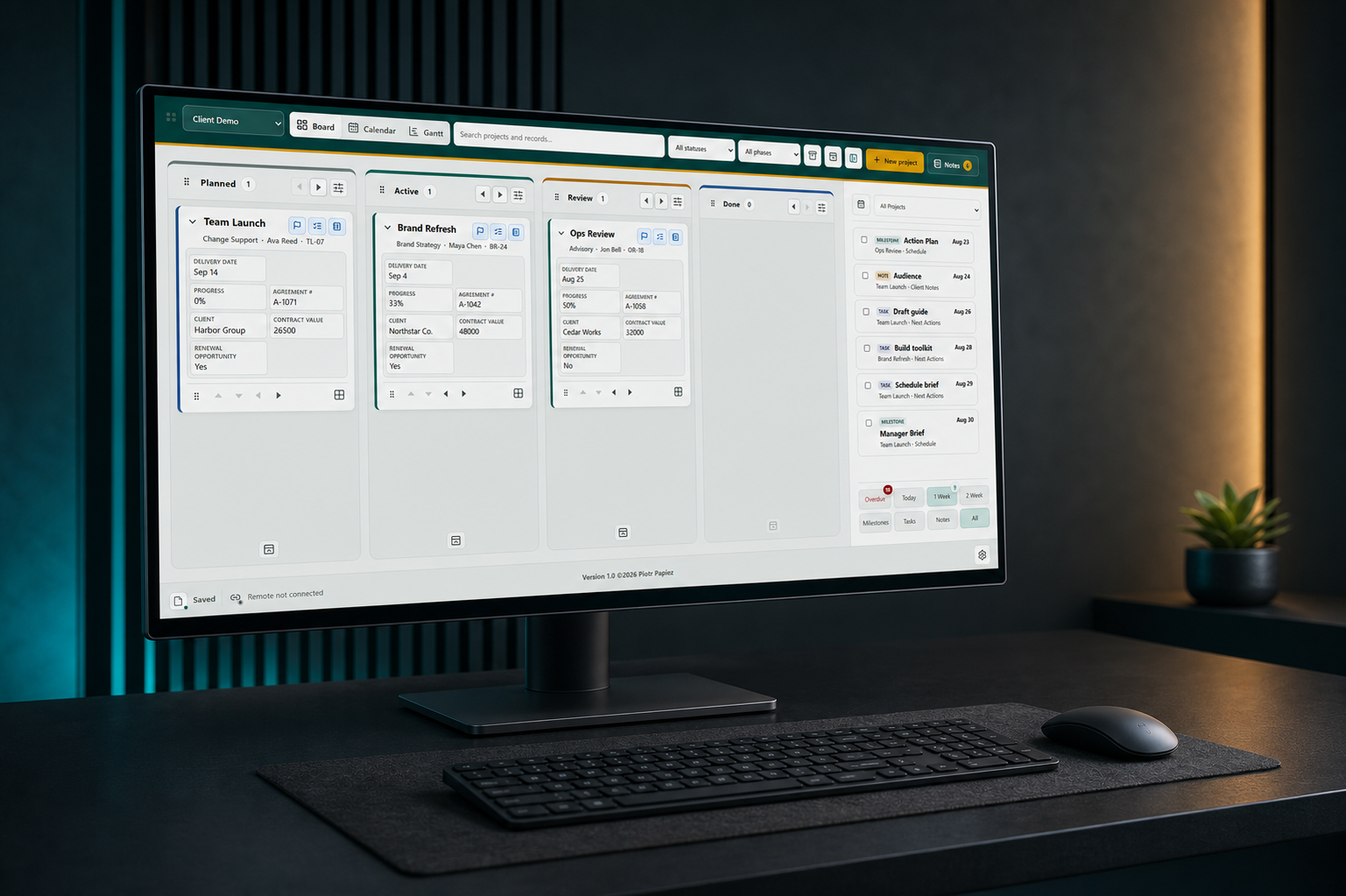
One place for the moving parts
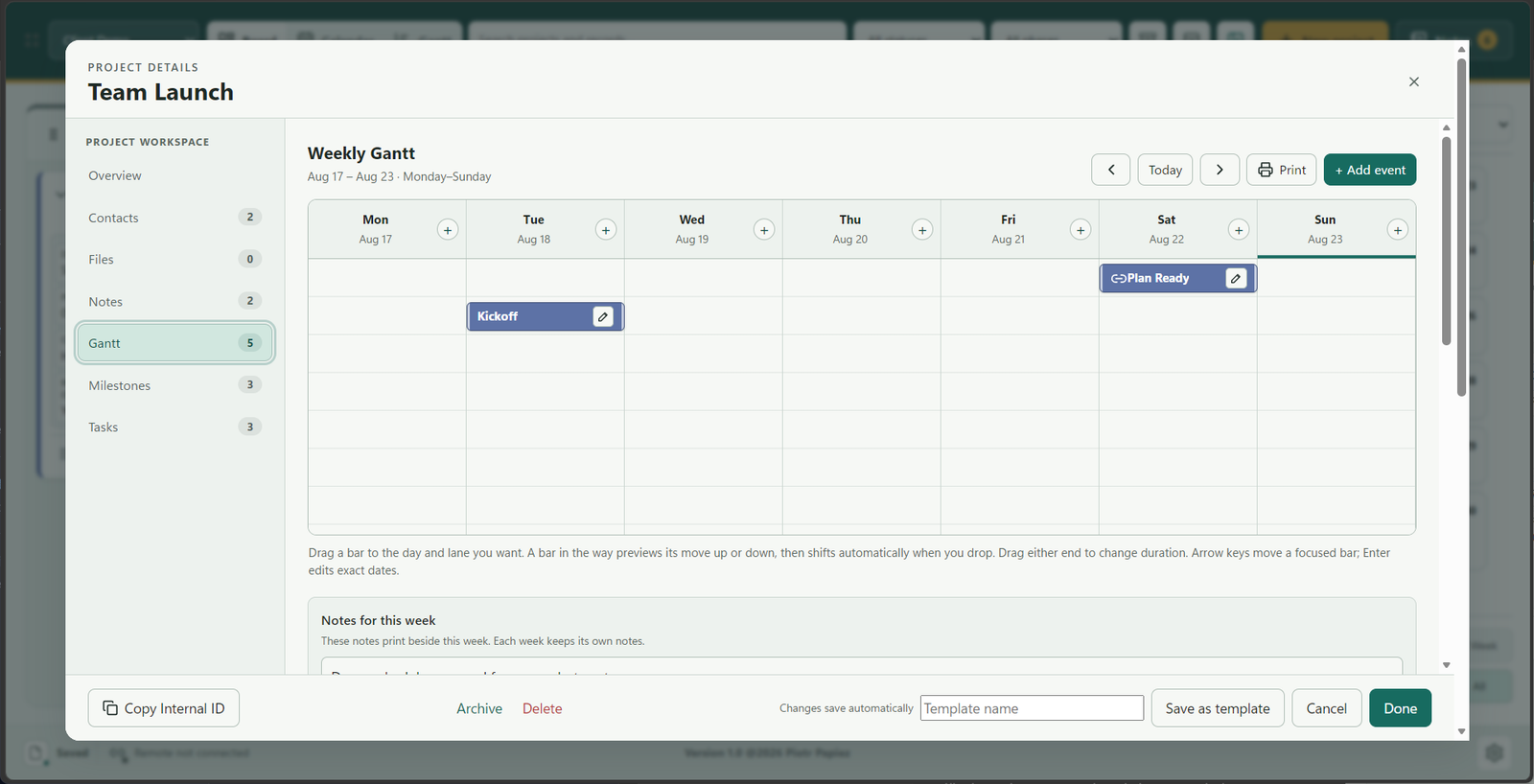
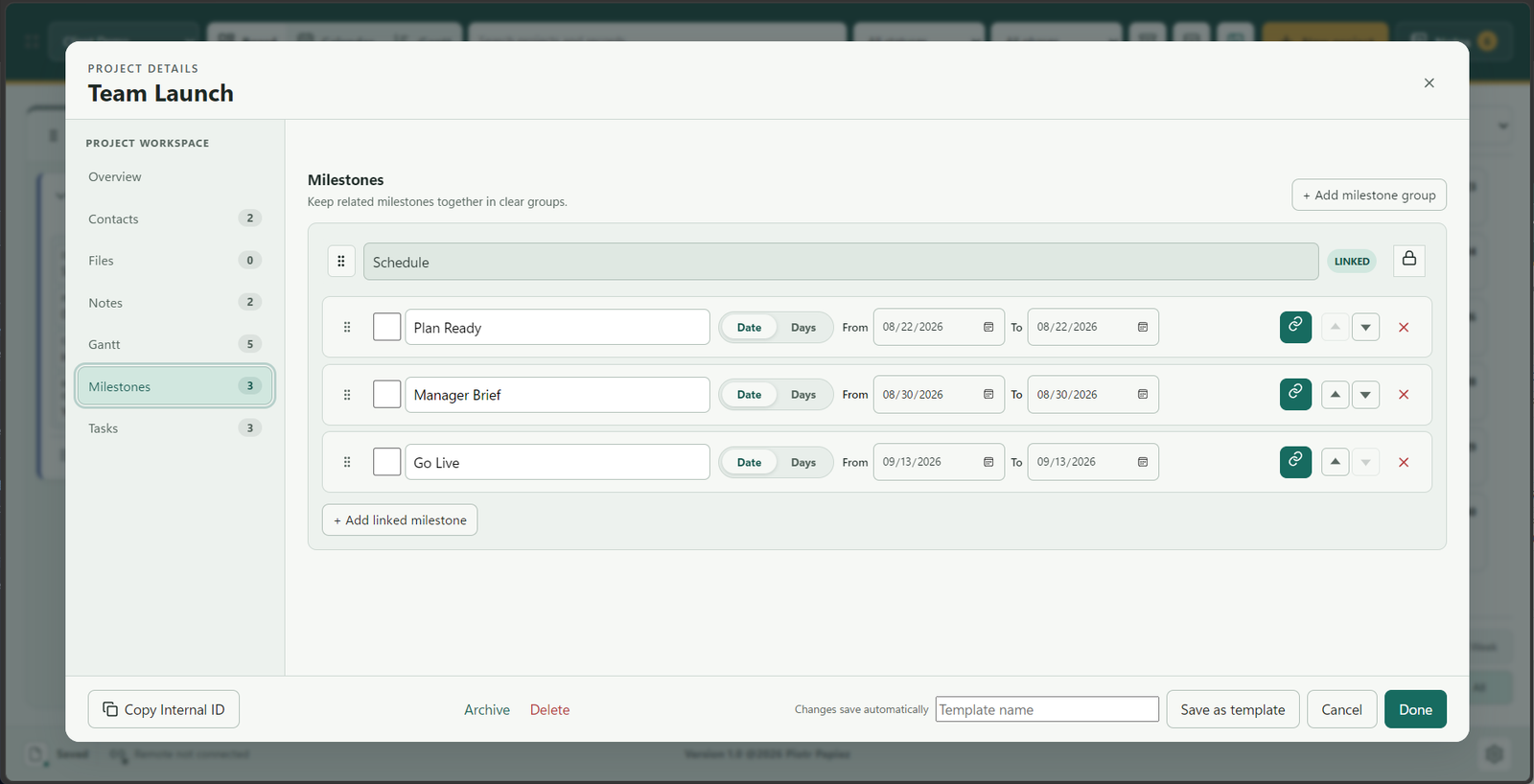
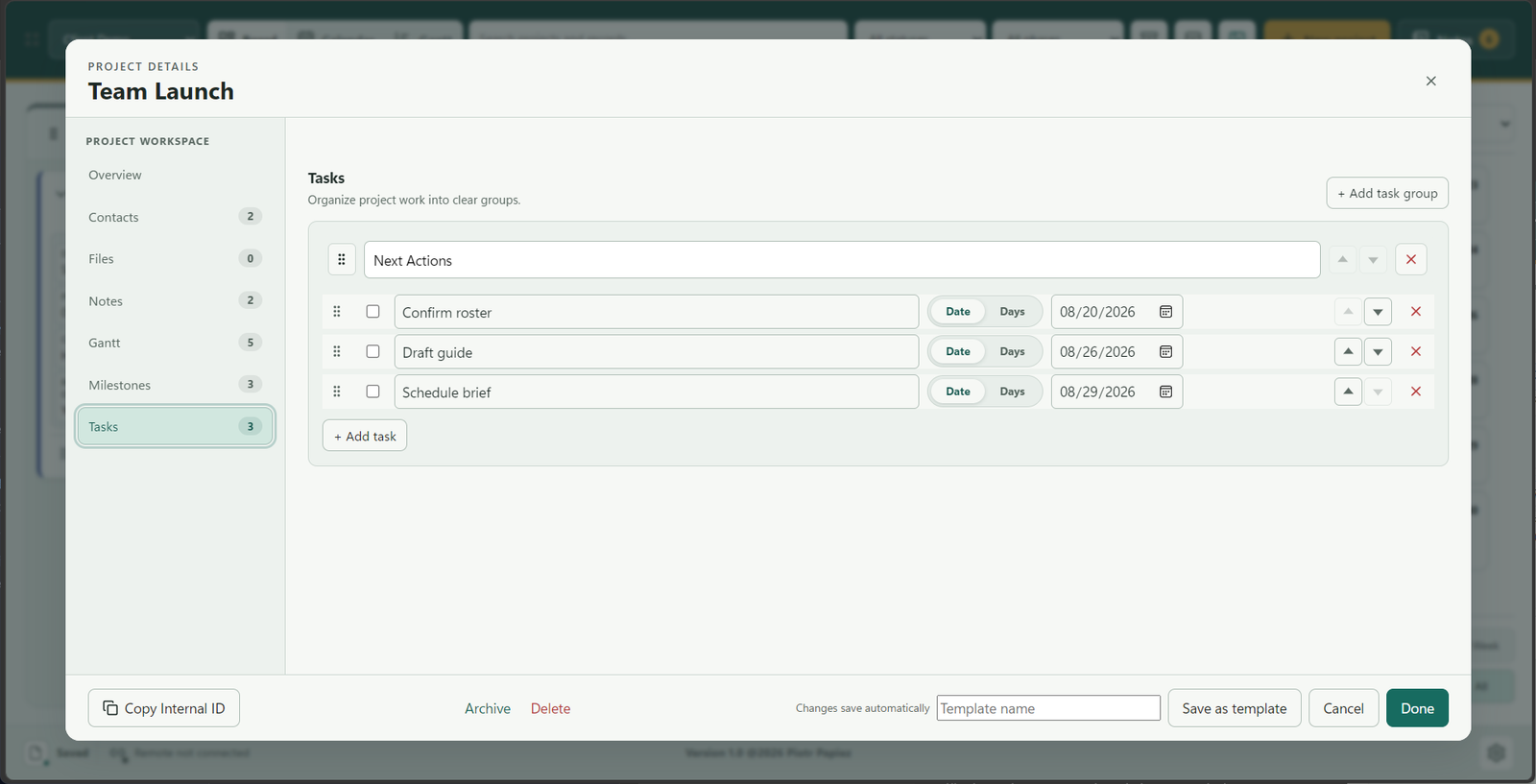
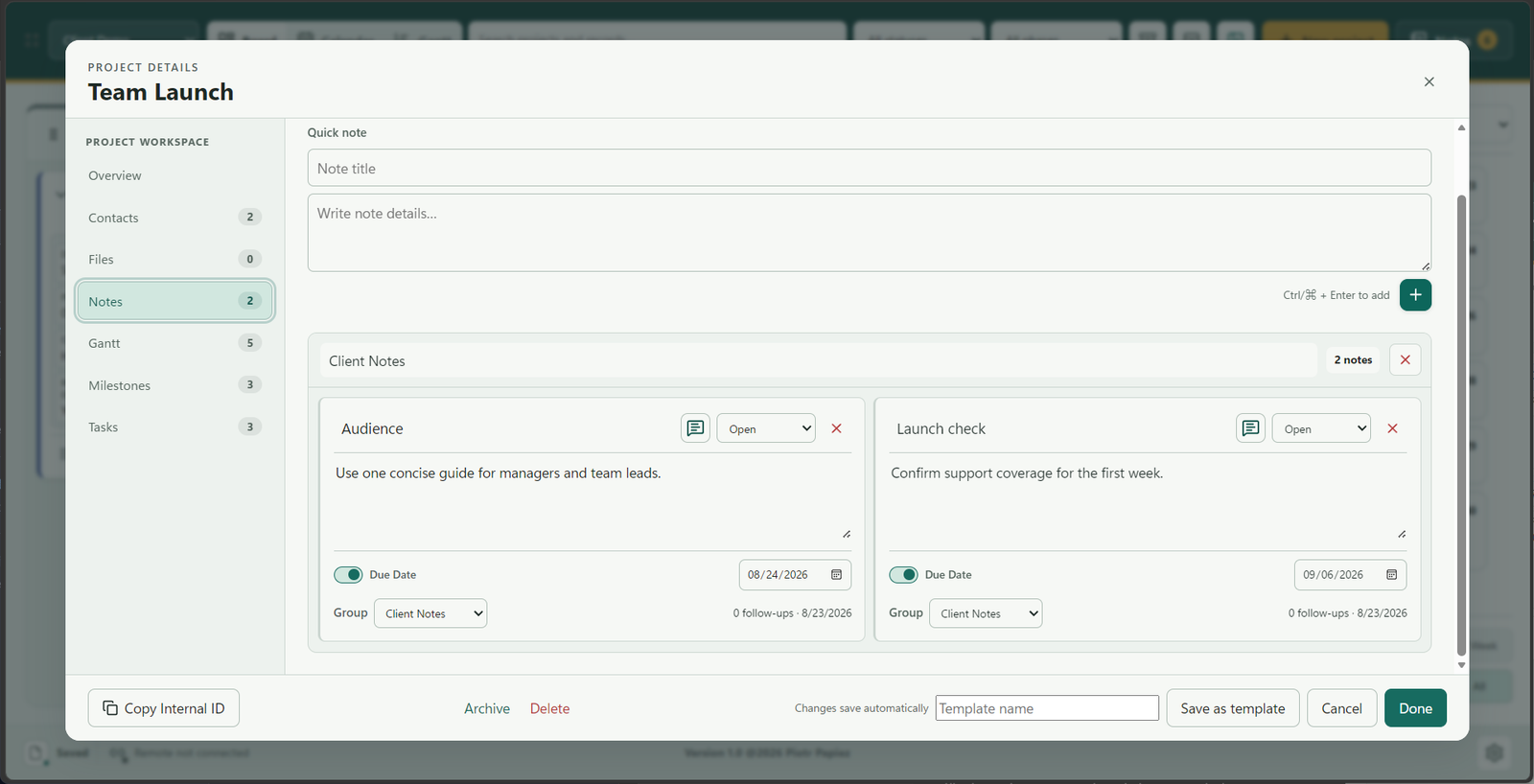
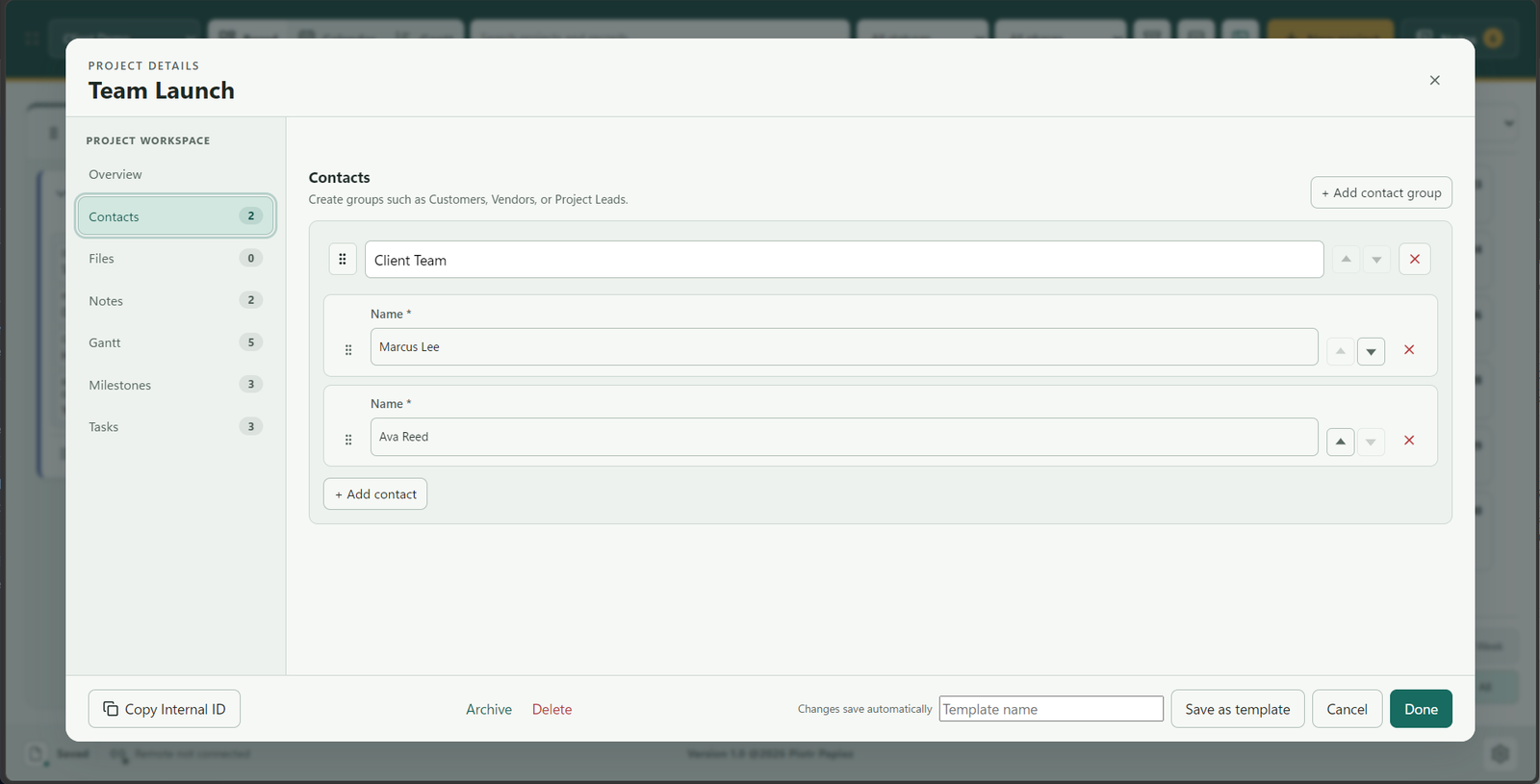
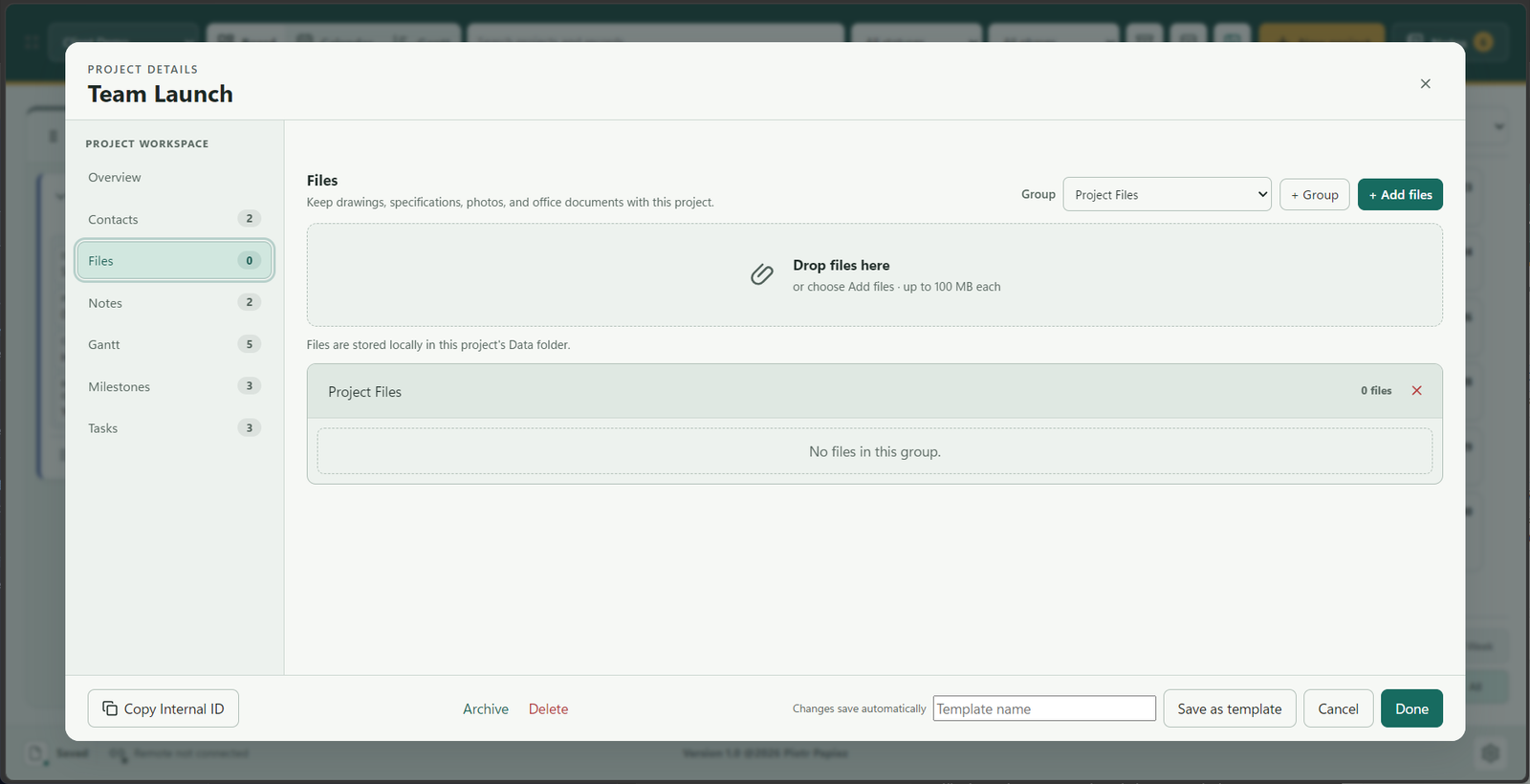
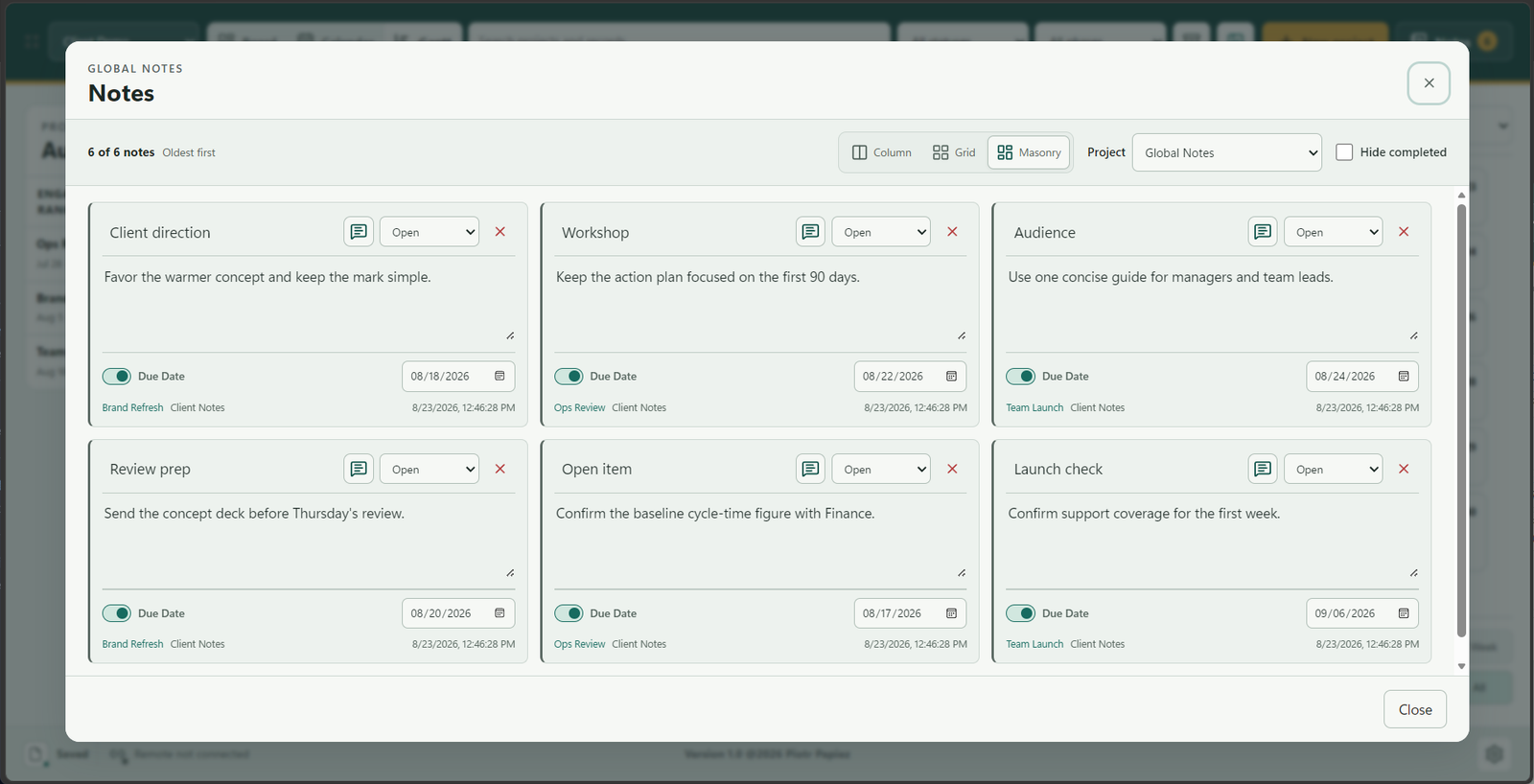
Board, Calendar, Schedule, and Global Notes reveal the whole portfolio. Open any project to work with its detailed plan, people, files, and decisions.
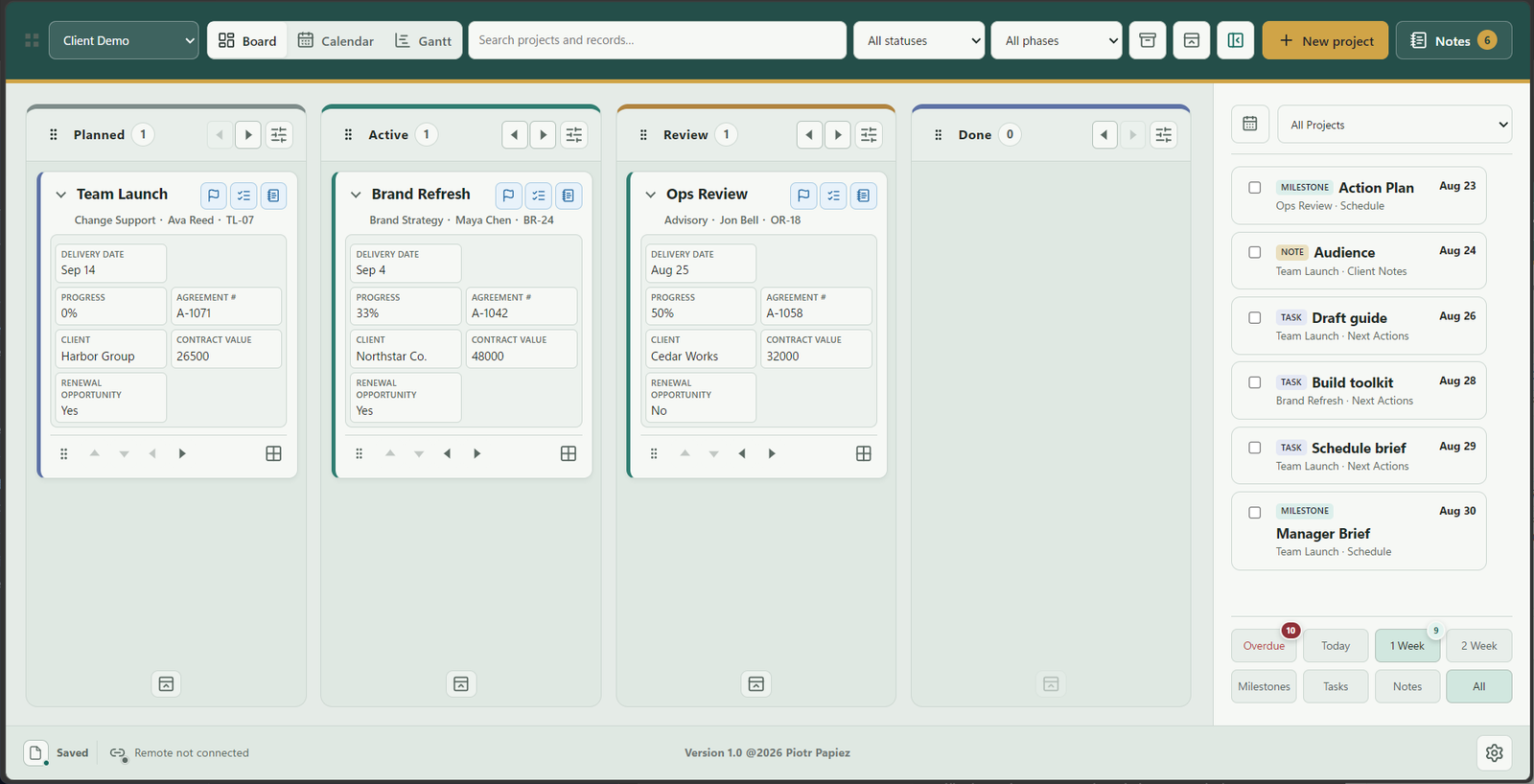
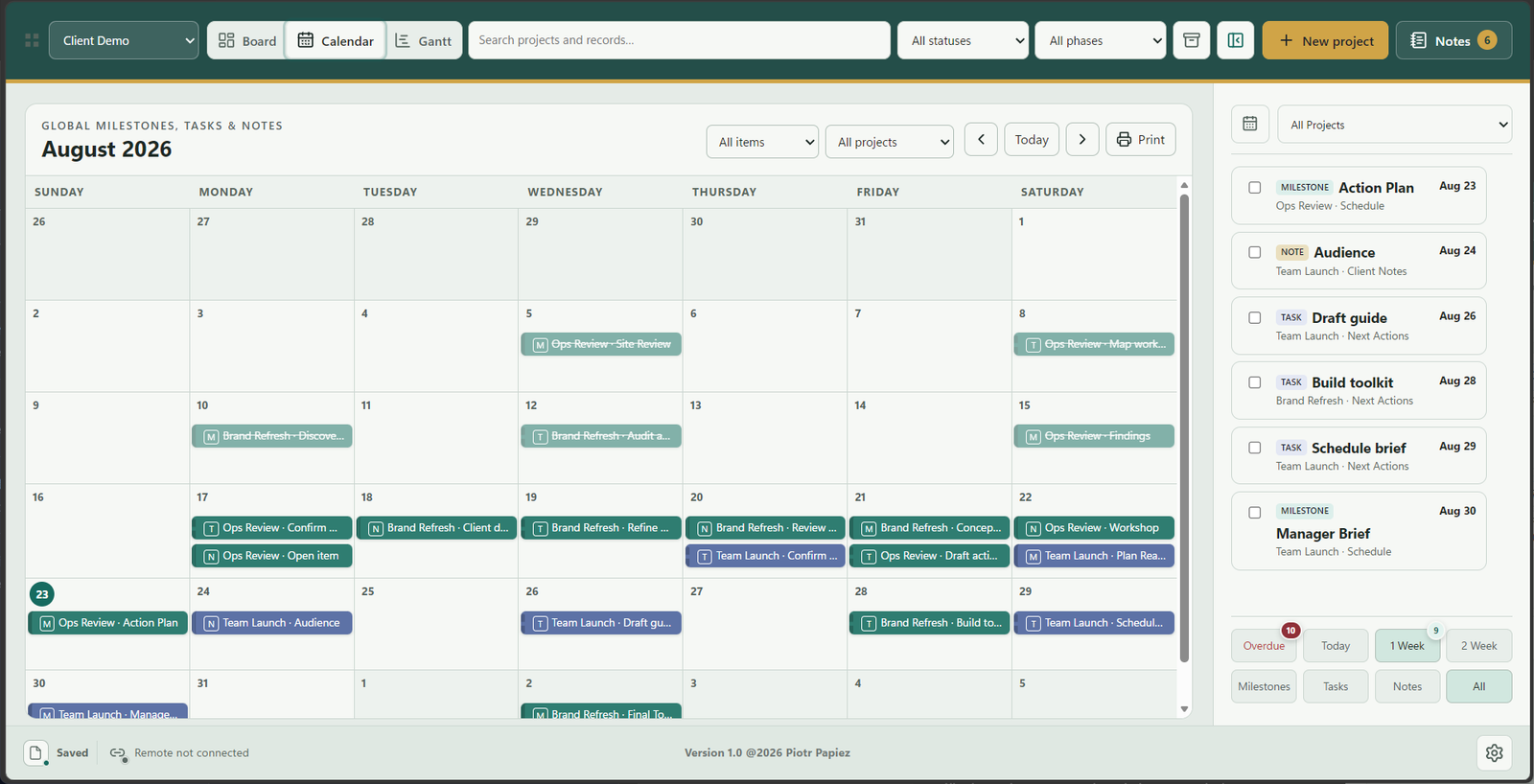
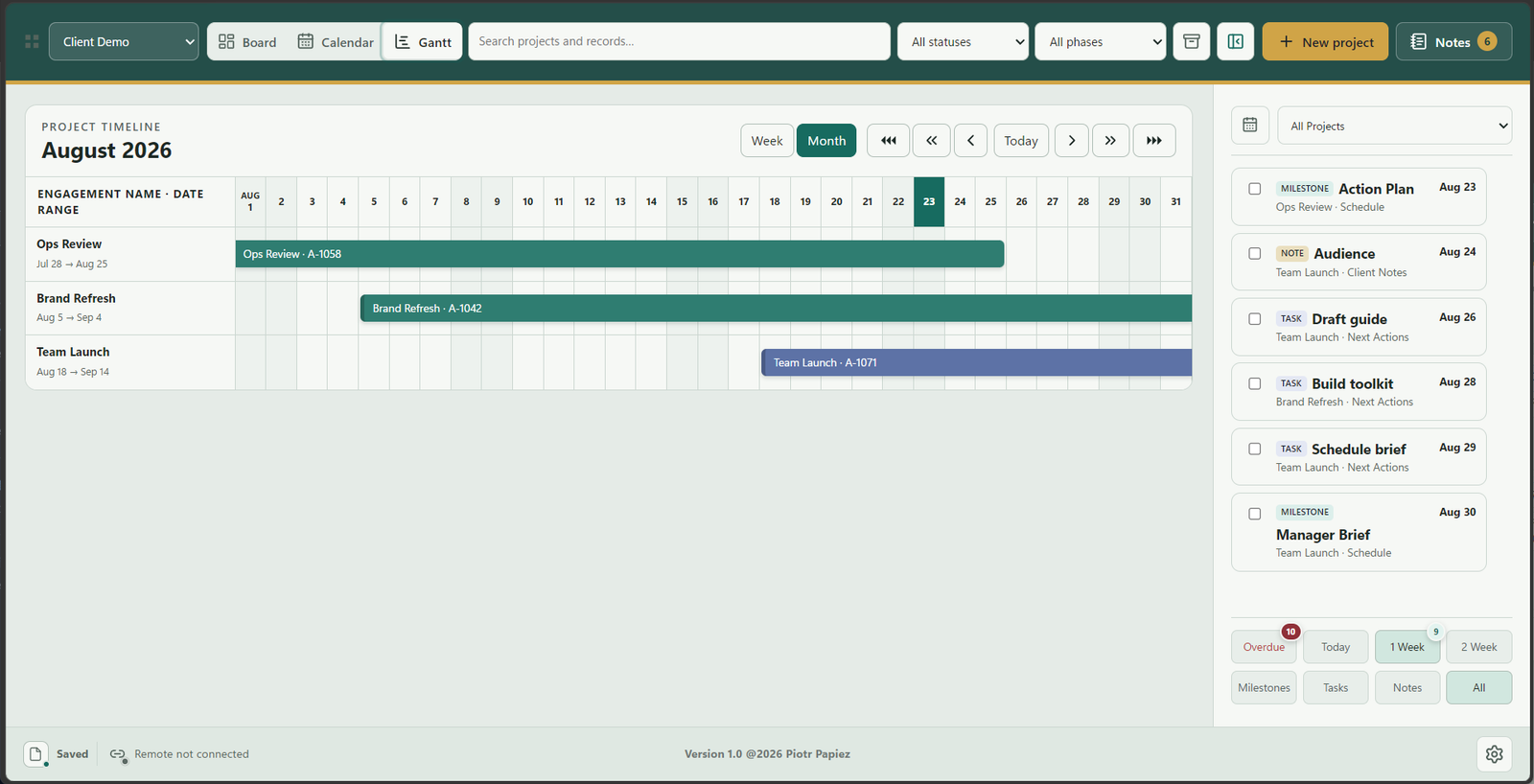
Planning inside the project
Adapt the system
Create a repeatable project system without forcing every kind of work into one rigid structure.
Define typed information and organize it into a stable project structure.
Arrange information into deliberate sections, rows, and columns.
Choose exactly which details should be visible while scanning the portfolio.
Build structures for client work, launches, internal initiatives, or your own methods.
Complete project context
Desktop and portable computer
Choose a LAN or NAS share on a trusted local network, or a Dropbox App Folder when the same owner moves between locations. PlanConsole transfers saved information between devices. It is sequential synchronization, not collaboration.
Finish editing on one device and allow PlanConsole to publish a verified snapshot.
The other device confirms the newest available state through the storage path you selected.
Only one copy edits at a time. The other remains protected from simultaneous changes.
Not collaborative. This workflow is intended for one owner moving between two computers. It is not a multi-user server or real-time shared workspace.
Start free. Activate when ready.
Download the complete application and use up to three projects without a countdown. A $9.99 lifetime Standard license unlocks unlimited projects on two managed devices.
Free edition
$0
Standard license
$9.99 one time
Checking secure purchase availability…
Save this key securely. A copy is also sent by email.
Official Version 1.5.2 release
The download control reads the owner-approved release manifest so the displayed installer, version, size, and integrity checksum stay together.
Windows installation notice. Microsoft Defender SmartScreen may show “Windows protected your PC,” and Windows may identify the publisher as “Unknown publisher.” Download only from piotrpapiez.com and verify the published SHA-256 value before installing. Do not disable SmartScreen or other Windows security protections.
Straight answers
No. It supports up to three projects indefinitely.
No. $9.99 is a one-time lifetime purchase for the current Standard license.
No. Project work is local. Internet is needed for purchase, activation, license validation, and Dropbox continuity.
No. The workflow is sequential, with one editor protected by a storage lease.
The authoritative data remains under your Windows user profile, with recovery copies and export controls.
Yes. Activated devices can be reviewed and managed from License Settings inside PlanConsole.